

Organization branding
Show each customer's own logo, name and branding on your hosted login page, admin portal, hosted widgets and authentication emails.
Organization branding shows each of your customers its own branding. When a user from Acme Corp signs in, the login page, admin portal and hosted widgets show Acme Corp’s logo and name instead of your application’s. An organization can also have its own colors, fonts, legal links and support email, and its branding can reach the emails its users get.
To set it up:
- Turn on organization branding for your environment.
- Customize each organization’s branding in its Branding tab, or set its logo from your code.
- Pass
organization_idwhen users log in, so Scalekit knows which organization’s branding to show.
Where it appears
Section titled “Where it appears”| Interface | What changes |
|---|---|
| Login page | Organization logo and Login to {Organization name} heading, plus the rest of its custom branding. |
| Admin portal | Organization logo in the portal header, plus the rest of its custom branding. |
| Hosted widgets | Organization logo in the widgets header. The rest of the widgets use your environment’s branding. |
| Emails | Organization name, logo, support email and legal links in login, sign-up and invitation emails, when you send them through your own email provider. See Use organization branding in emails. |
Enable organization branding
Section titled “Enable organization branding”Go to Branding in your Scalekit dashboard. At the end of the settings panel, turn on Organization Branding and click Save.
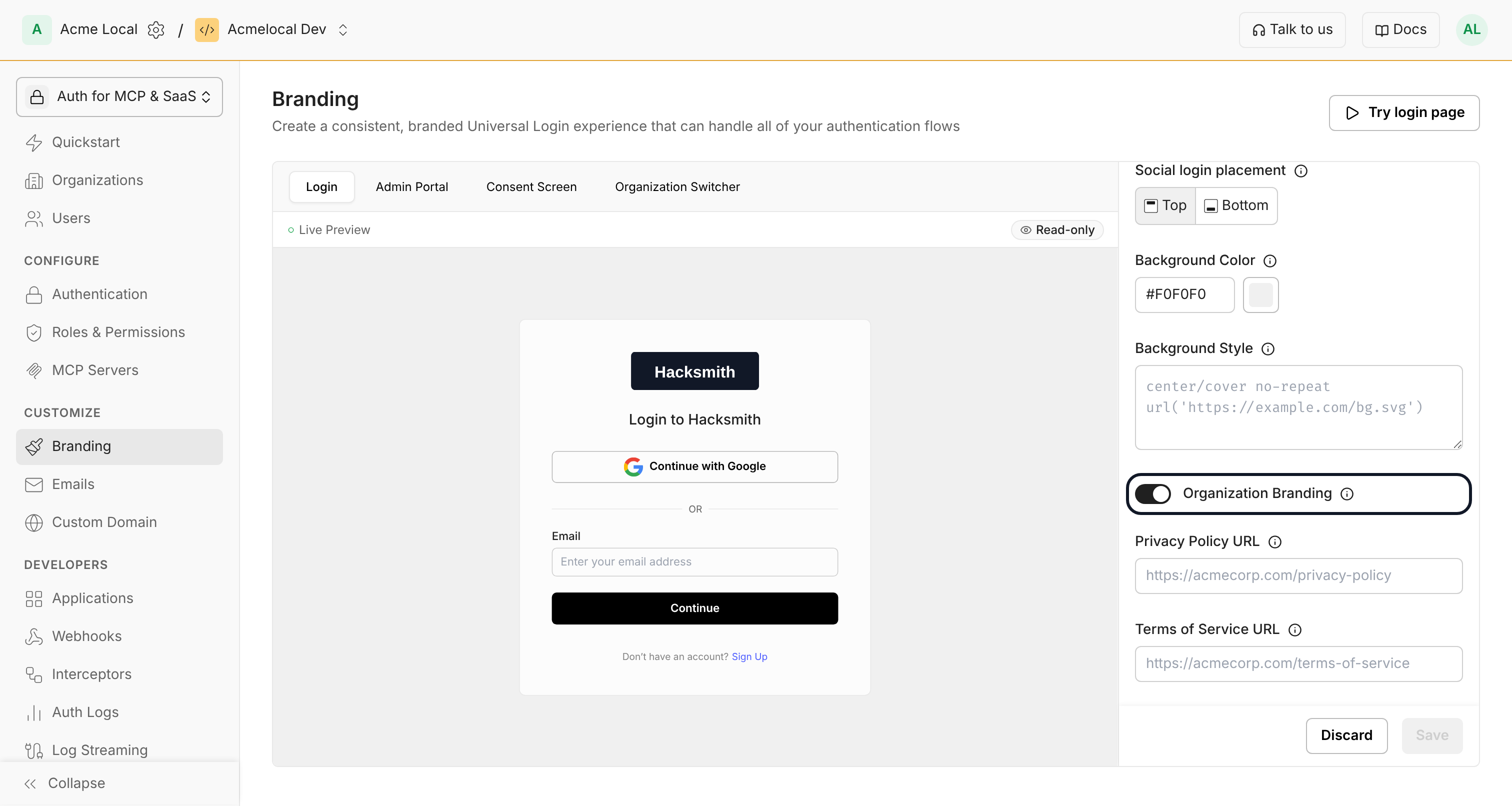
Once it is on, each organization’s branding applies wherever it appears. An organization with no branding of its own keeps showing your application’s branding.
Customize an organization’s branding
Section titled “Customize an organization’s branding”Each organization uses one of two kinds of branding:
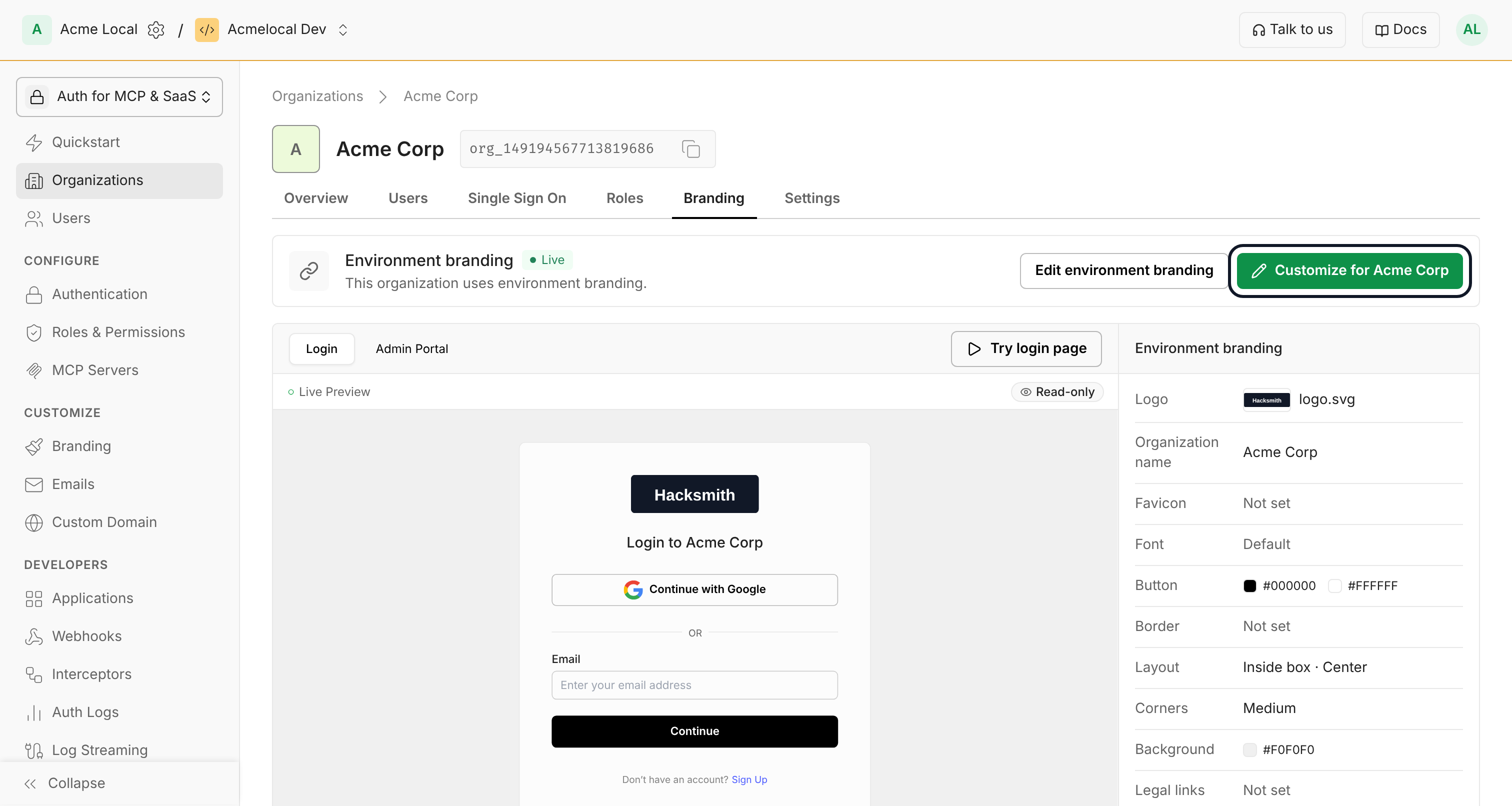
- Environment branding: the organization follows your environment’s branding, and changes to it apply right away. An organization uses this until you customize it or set its logo.
- Custom branding: the organization’s own saved branding applies, and later changes to your environment’s branding don’t change what it saved. A value it leaves empty, such as its support email, keeps following your environment’s.
You set up custom branding in the organization’s Branding tab: its logo, favicon, font, button and border colors, layout, corners, background, legal links and support email. The organization’s name comes from the organization itself.
-
Go to Organizations, select the organization, and open the Branding tab. The tab shows the branding the organization uses now, with a live preview of its login page and admin portal. If organization branding is off, the tab links you to your environment’s Branding settings to turn it on.
-
Click Customize for the organization. The editor starts from your environment’s branding, with the organization’s name.
-
Change what this organization needs. For the logo, upload a file or enter a URL, or set it from your code.
-
Click Apply custom branding. After that, save later edits with Save changes. To check the result, click Try login page: it opens your login page with this organization’s branding.
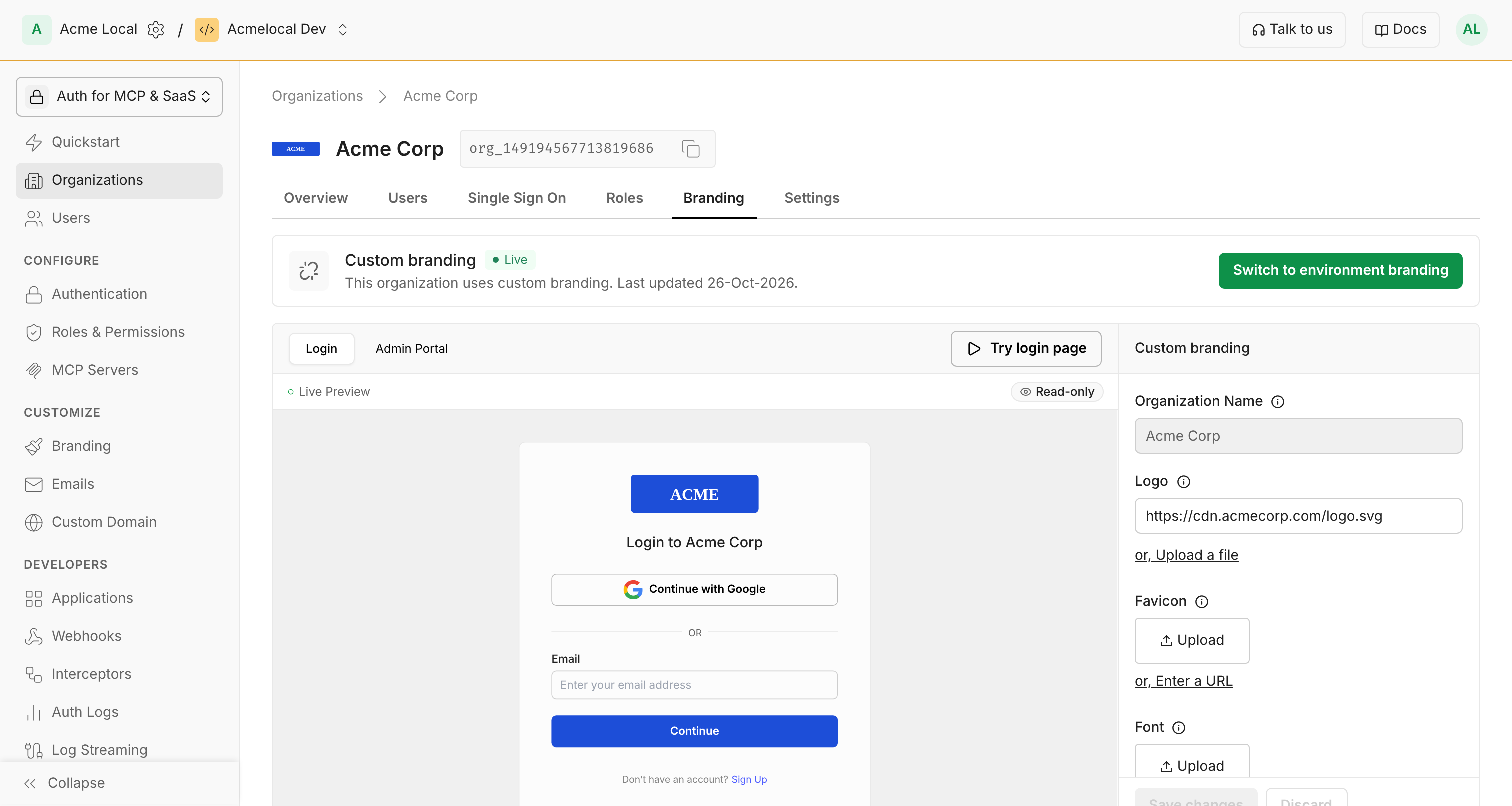
To go back, click Switch to environment branding. Scalekit keeps the saved custom branding, so Re-apply custom branding restores it later.
Logo requirements
Section titled “Logo requirements”A logo works best when it meets these requirements:
- Publicly accessible URL, when you enter a URL: Scalekit fetches the image from it.
- Allowed formats: PNG, JPG, SVG, GIF.
- Recommended minimum height: 36px. Smaller logos may look pixelated in the login page, admin portal, and hosted widgets.
Set the logo from your code
Section titled “Set the logo from your code”If you create organizations from your own code, you can set the logo there instead, with logo_url. To set it when you create the organization, see Create organization. To change or remove it later, update the organization, as below. The same logo requirements apply, and setting a logo switches the organization to custom branding. An empty logo_url removes the logo, and the organization shows your environment’s logo again.
The examples use the Scalekit client from Set up Scalekit.
npm install @scalekit-sdk/nodepip install scalekit-sdk-pythongo get -u github.com/scalekit-inc/scalekit-sdk-go/v2The Java SDK is published to Scalekit’s Maven repository, https://us-maven.pkg.dev/scalekit-public/java. Add it to your build next to Maven Central. It needs no credentials. If your builds download dependencies only through a mirror such as Nexus or Artifactory, add this URL to the mirror instead. For Maven, add the <repositories> and <dependency> entries to the matching sections of your existing pom.xml.
// Gradle: build.gradlerepositories {    mavenCentral()    maven { url "https://us-maven.pkg.dev/scalekit-public/java" }}
dependencies {    implementation "com.scalekit:scalekit-sdk-java:2.6.1"}
<!-- Maven: pom.xml --><repositories> <repository> <id>scalekit</id> <url>https://us-maven.pkg.dev/scalekit-public/java</url> </repository></repositories>
<dependencies> <dependency> <groupId>com.scalekit</groupId> <artifactId>scalekit-sdk-java</artifactId> <version>2.6.1</version> </dependency></dependencies>// Set the logoawait scalekit.organization.updateOrganization('org_12345', { logoUrl: 'https://cdn.acmecorp.com/logo.png',});
// Remove itawait scalekit.organization.updateOrganization('org_12345', { logoUrl: '' });from scalekit.v1.organizations.organizations_pb2 import UpdateOrganization
# Set the logoscalekit_client.organization.update_organization( organization_id='org_12345', organization=UpdateOrganization(logo_url='https://cdn.acmecorp.com/logo.png'))
# Remove itscalekit_client.organization.update_organization( organization_id='org_12345', organization=UpdateOrganization(logo_url=''))// Set the logologoURL := "https://cdn.acmecorp.com/logo.png"if _, err := scalekitClient.Organization().UpdateOrganization( ctx, "org_12345", &scalekit.UpdateOrganization{LogoUrl: &logoURL},); err != nil { return err}
// Remove itemptyURL := ""if _, err := scalekitClient.Organization().UpdateOrganization( ctx, "org_12345", &scalekit.UpdateOrganization{LogoUrl: &emptyURL},); err != nil { return err}// Requires scalekit-sdk-java v2.1.3+// Set the logoscalekitClient.organizations().updateById("org_12345", UpdateOrganization.newBuilder().setLogoUrl("https://cdn.acmecorp.com/logo.png").build());
// Remove itscalekitClient.organizations().updateById("org_12345", UpdateOrganization.newBuilder().setLogoUrl("").build());Set the organization’s support email
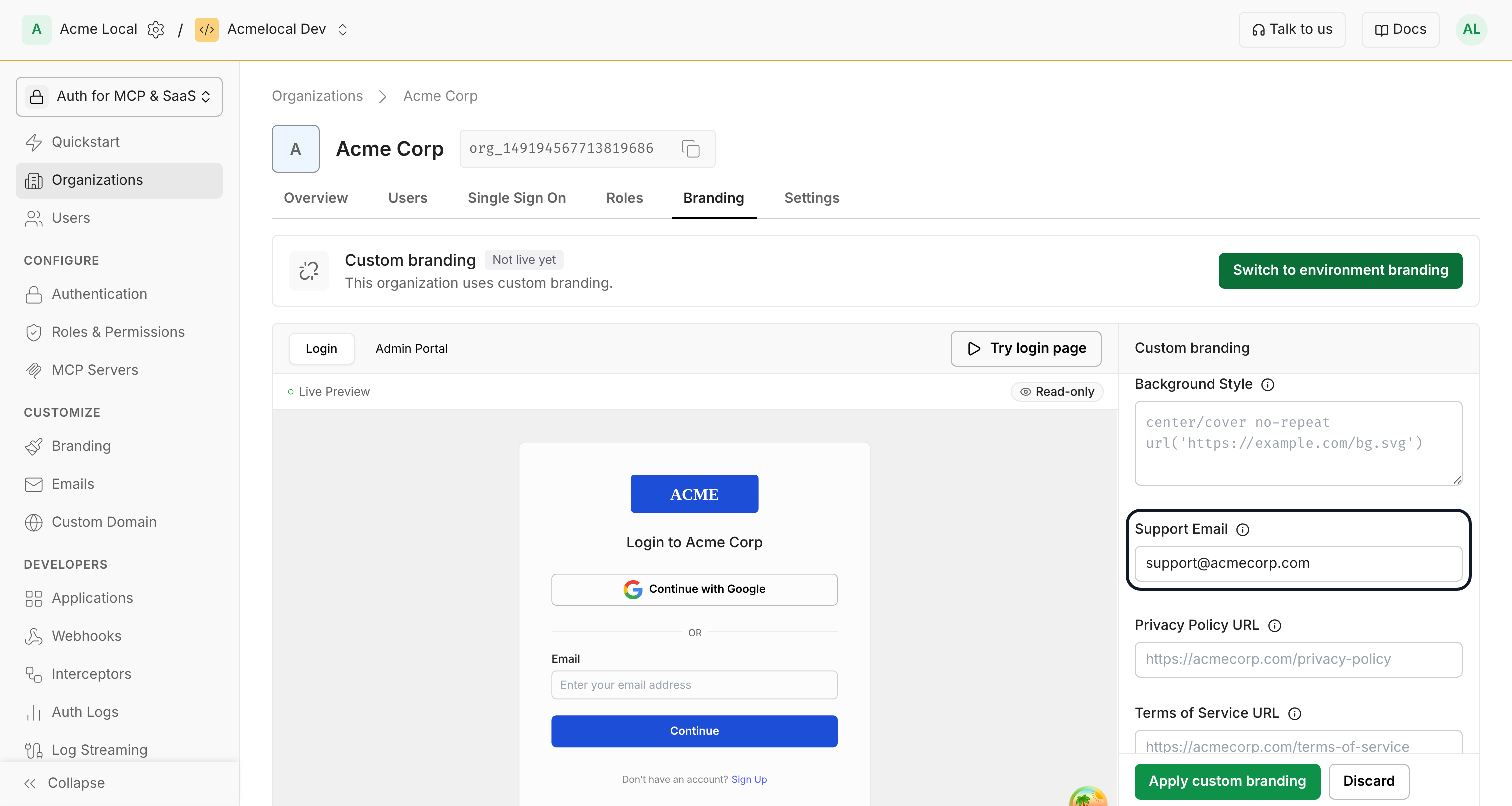
Section titled “Set the organization’s support email”The Support Email field in the organization’s custom branding sets the support email shown on its login page and, when you send emails through your own email provider, in its emails. Leave it empty to use your environment’s support email; it then follows any change you make to your environment’s support email.
Show the organization’s branding at login
Section titled “Show the organization’s branding at login”Scalekit shows an organization’s branding only when it knows which organization the user is logging in to. Pass organization_id in the authorization request: the login page then shows the organization’s branding and the Login to {Organization name} heading, and its login and sign-up emails are sent for that organization. Without it, the login page shows your application’s branding.
Pass organization_id when building the authorization URL in your login flow:
const options = {  scopes: ['openid', 'profile', 'email'],  state: sessionStorage.oauthState,  organizationId: 'org_12345',};
const authorizationUrl = scalekit.getAuthorizationUrl(redirectUri, options);res.redirect(authorizationUrl);options = AuthorizationUrlOptions()options.scopes = ['openid', 'profile', 'email']options.state = session['oauth_state']options.organization_id = 'org_12345'
authorization_url = scalekit_client.get_authorization_url(redirect_uri, options)return redirect(authorization_url)options := scalekit.AuthorizationUrlOptions{ Scopes: []string{"openid", "profile", "email"}, State: state, OrganizationId: "org_12345",}
authorizationUrl := scalekitClient.GetAuthorizationUrl(redirectUri, options)http.Redirect(w, r, authorizationUrl, http.StatusFound)AuthorizationUrlOptions options = new AuthorizationUrlOptions();options.setScopes(List.of("openid", "profile", "email"));options.setState(state);options.setOrganizationId("org_12345");
String authorizationUrl = scalekitClient.getAuthorizationUrl(redirectUri, options);response.sendRedirect(authorizationUrl);Use organization branding in emails
Section titled “Use organization branding in emails”Login, sign-up and invitation emails can carry the organization’s branding when you send them through your own email provider:
- In the email body, use the
organization_*variables in a custom email template, such as{{ organization_logo_url }}and{{ organization_support_email }}. These fall back to your application’s values when the organization doesn’t set them;{{ organization_name }}is empty when the email isn’t sent for an organization. - In the sender name, use
{{ organization_name }}, such as{{ organization_name }} Support. See Use variables in the sender name.
Login and sign-up emails are sent for an organization when the authorization URL includes organization_id, as shown above. Invitation emails are sent for the organization the user is invited to.