

Add enterprise SSO to an Auth0 app with Scalekit
Add Scalekit to Auth0 as an OpenID Connect enterprise connection, so your enterprise customers sign in with their own identity provider while Auth0 keeps your users and sessions.
If your app signs users in with Auth0, you can add enterprise single sign-on (SSO) without changing how Auth0 runs your users and sessions. You add Scalekit to Auth0 as an OpenID Connect (OIDC) enterprise connection. When a user from an enterprise customer signs in, Auth0 sends them to Scalekit, Scalekit sends them to their company’s identity provider (IdP), such as Okta or Microsoft Entra ID, and the verified user comes back to Auth0.
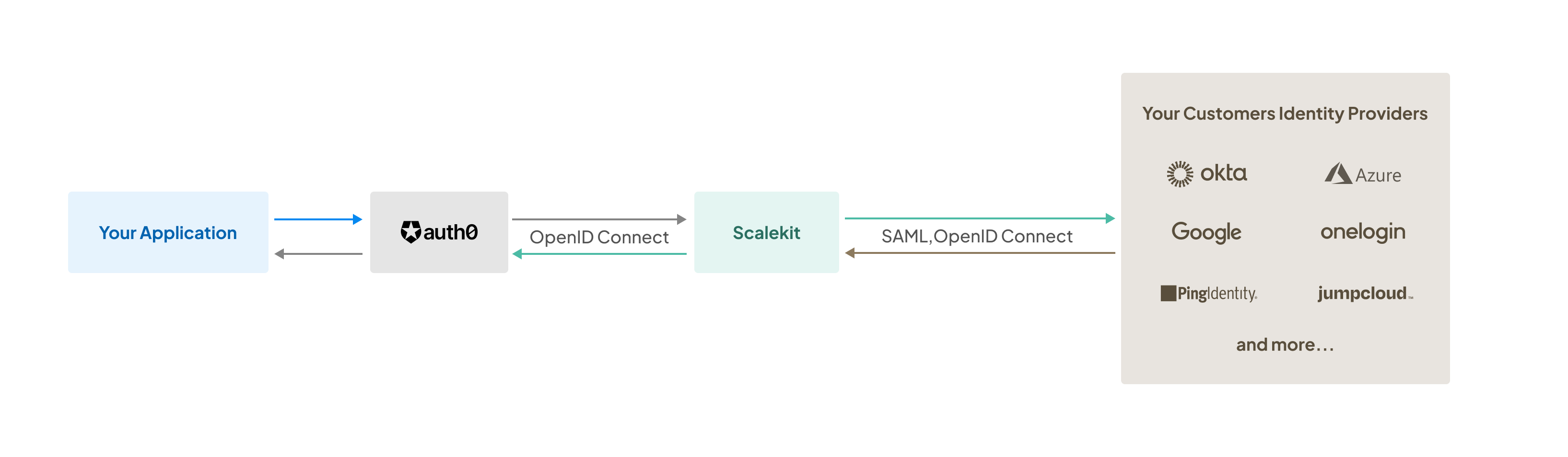
At the end of this guide, a test user signs in to your Auth0 app through the SSO simulator.
Before you start
Section titled “Before you start”- An Auth0 plan that includes enterprise connections. Not every Auth0 plan does; check Auth0’s pricing.
- A Management API token with the
create:connectionsandupdate:connectionsscopes. See Get Management API access tokens. - A Scalekit environment in Modular Auth mode. In the Scalekit dashboard, select Settings > Authentication Mode > Modular Auth.
- Your Scalekit API credentials: the environment URL, client ID and client secret, under Developers > Settings > API Credentials.
Tell Scalekit which customer is signing in
Section titled “Tell Scalekit which customer is signing in”Scalekit needs to know which customer’s IdP to send each user to. With Auth0, the simplest way is the user’s work email: your app asks for it, passes it to Auth0 as login_hint, and the connection forwards it to Scalekit, which finds the organization with that email domain. Without it, Scalekit can’t pick an IdP and returns invalid_connection_selector.
The steps below set up the connection to forward login_hint, and show the call your app makes.
Set up the connection
Section titled “Set up the connection”-
Create the connection in Auth0
Section titled “Create the connection in Auth0”Create an OIDC connection with the Auth0 Management API. The
upstream_paramsoption forwards thelogin_hintyour app sends to Scalekit:Terminal window curl --request POST \--url "https://$AUTH0_DOMAIN/api/v2/connections" \--header "Authorization: Bearer $AUTH0_MANAGEMENT_TOKEN" \--header "Content-Type: application/json" \--data '{"strategy": "oidc","name": "scalekit","options": {"type": "back_channel","discovery_url": "'"$SCALEKIT_ENVIRONMENT_URL"'/.well-known/openid-configuration","client_id": "'"$SCALEKIT_CLIENT_ID"'","client_secret": "'"$SCALEKIT_CLIENT_SECRET"'","scopes": "openid profile email","upstream_params": { "login_hint": { "alias": "login_hint" } }}}'AUTH0_DOMAINis your tenant’s domain, such asexample.us.auth0.com. Note theidin the response; it starts withcon_. -
Turn on the connection for your app
Section titled “Turn on the connection for your app”In the Auth0 dashboard, go to Authentication > Enterprise > OpenID Connect > scalekit > Applications, and turn on the application your users sign in to.
-
Register Auth0’s callback URL in Scalekit
Section titled “Register Auth0’s callback URL in Scalekit”Auth0 receives the user back from Scalekit at its callback URL:
https://<AUTH0_DOMAIN>/login/callback, orhttps://<your-custom-domain>/login/callbackif your tenant uses a custom domain. The connection’s Settings tab in Auth0 shows it.In the Scalekit dashboard, add it under Authentication > Redirect URLs > Allowed callback URLs. See Register redirect URLs.
-
Send enterprise users to the connection
Section titled “Send enterprise users to the connection”When a user chooses to sign in with SSO, ask for their work email, then start the Auth0 login with the
scalekitconnection and the email aslogin_hint. With the Auth0 SPA SDK:await auth0.loginWithRedirect({authorizationParams: {connection: 'scalekit',login_hint: email, // the user's work email, such as jane@megacorp.com},});With another Auth0 SDK, pass
connectionandlogin_hintthe same way; both go to Auth0’s/authorizeendpoint. Users who don’t sign in with SSO keep using your existing login.
Onboard each enterprise customer
Section titled “Onboard each enterprise customer”For each customer that wants SSO:
- Create an organization for them in Scalekit.
- Add their email domain to the organization, such as
megacorp.com, so Scalekit can find it from thelogin_hint. See Route users to SSO by email domain. - Give their IT admin the admin portal to connect their IdP.
See Onboard an enterprise customer.
Check it worked
Section titled “Check it worked”Your development environment has a test organization with the example.com and example.org domains, connected to the SSO simulator.
- In your app, start an SSO login with
jane@example.comas the email. - Auth0 redirects to Scalekit, which opens the SSO simulator. Leave User Login via SSO selected, enter
jane, a first and last name, and select Simulate Login. - You’re back in your app, signed in. In the Auth0 dashboard, User Management > Users lists
jane@example.comwith thescalekitconnection.
If Scalekit returns invalid_connection_selector, the login_hint didn’t reach it: check upstream_params on the connection and that your app sends login_hint. For other errors, see Troubleshoot Modular SSO.
- Map IdP groups to roles: send groups from the IdP. In Auth0, the claims Scalekit returns are mapped to the user’s profile by the connection’s user mapping settings.
- Production readiness checklist: what to check before your first customer goes live.